

Key takeaways
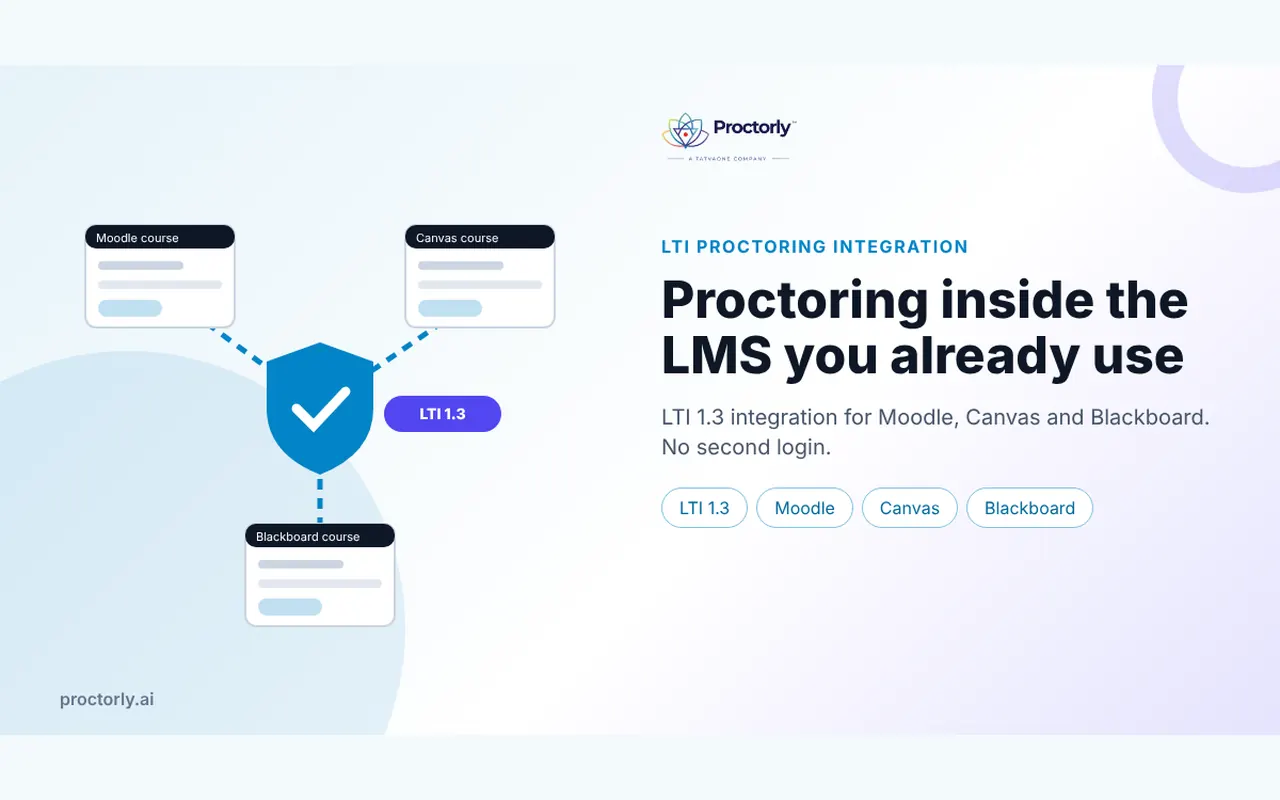
- LTI proctoring integration connects a proctoring tool to your LMS through the 1EdTech LTI 1.3 standard, so students start proctored exams from their course page.
- Faculty keep building quizzes in the LMS; proctoring settings sit alongside the quiz.
- LTI 1.3 uses signed tokens and key pairs, which is more secure than older LTI 1.1 integrations.
- A clean integration means no extra logins, no grade re-entry and fewer support tickets.
- Ask vendors which LMS versions they support today and which are planned.
Most universities already run their assessments in an LMS. Faculty know how to build a Moodle quiz or a Canvas exam. Students know where to find it. The worst thing a proctoring rollout can do is ask both groups to learn a second system and move between two logins on exam day.
LTI integration solves that. This guide explains how it works and what your IT team should check.
Running Moodle, Canvas or Blackboard? Book a meeting to check integration fit for your version.
What is LTI proctoring integration?
LTI proctoring integration is a standards-based connection between a learning management system and a proctoring tool using 1EdTech’s Learning Tools Interoperability (LTI) 1.3. The LMS launches the proctoring tool securely when a student opens an exam, passes identity and course context, and the tool monitors the attempt without a separate login.
1EdTech has also published an LTI Proctoring Services specification built on LTI 1.3, designed so assessment platforms and proctoring tools can work together more easily (1EdTech).
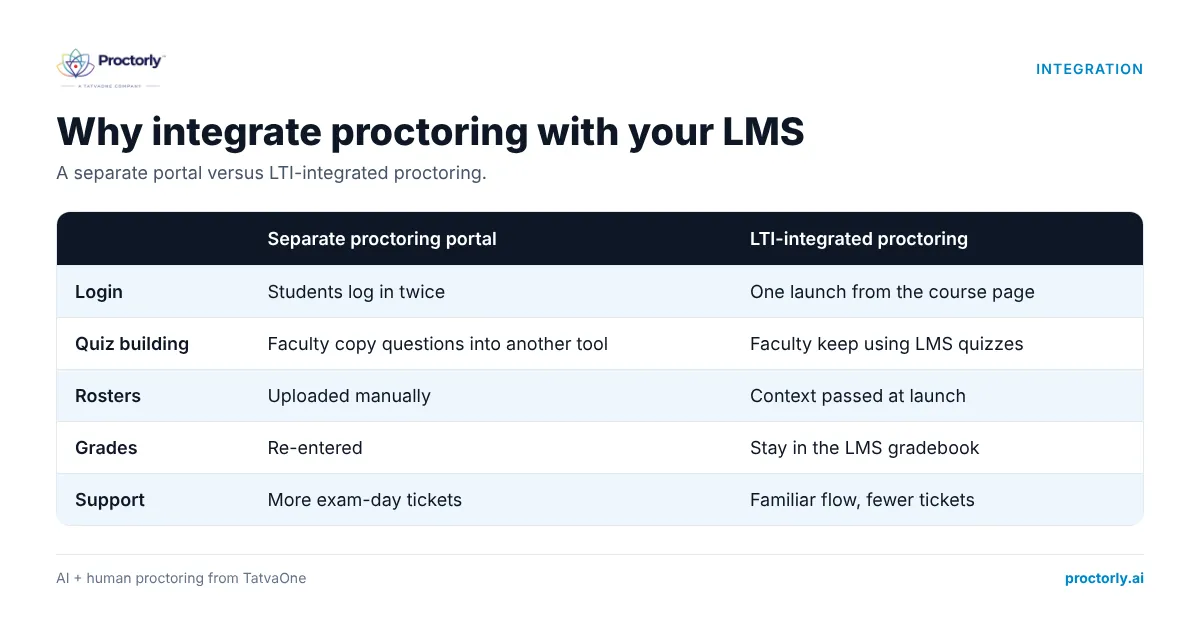
Why integrate proctoring with your LMS instead of running it separately
| Separate proctoring portal | LTI-integrated proctoring |
|---|---|
| Students log in twice | One launch from the course page |
| Faculty copy questions into another tool | Faculty keep using LMS quizzes |
| Rosters uploaded manually | Course and user context passed at launch |
| Grades re-entered | Grades stay in the LMS gradebook |
| More exam-day support tickets | Familiar flow, fewer tickets |
How an LTI 1.3 proctored exam works, step by step
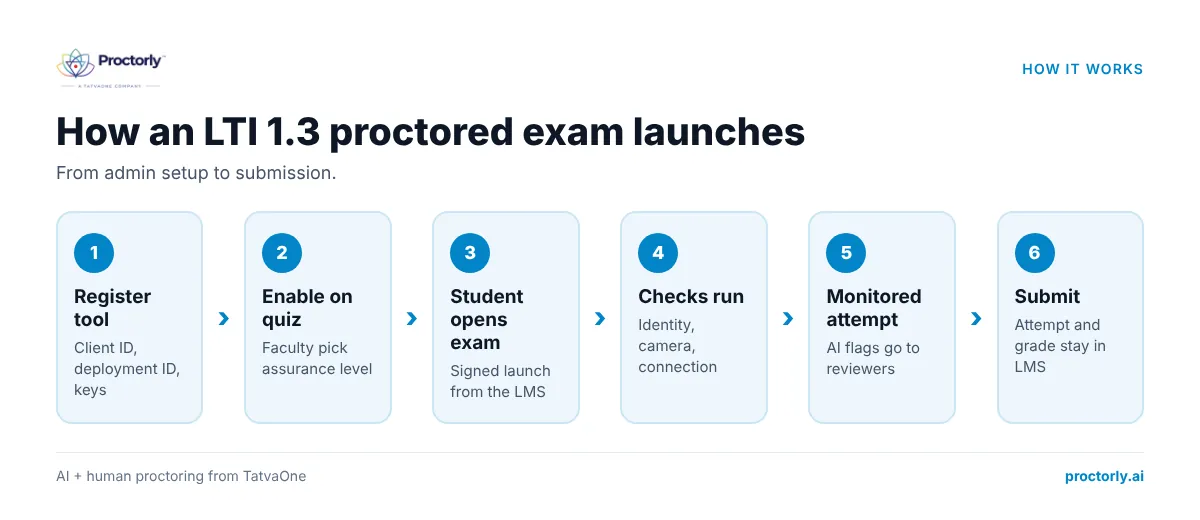
- Admin registers the tool. The LMS and the proctoring tool exchange configuration (client ID, deployment ID, public key endpoints).
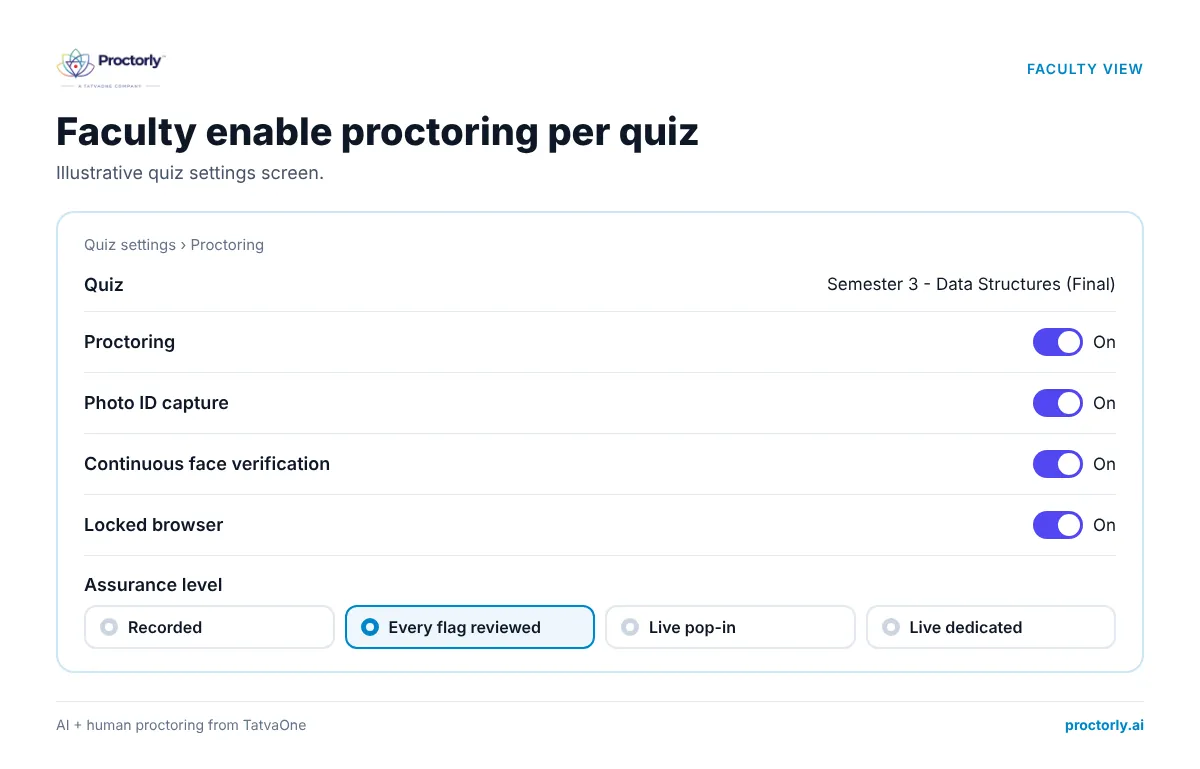
- Faculty enable proctoring on a quiz. They pick the assurance level and identity checks for that quiz.
- Student opens the exam. The LMS sends a signed launch message to the proctoring tool with the user and course context.
- Identity and system checks run. The student verifies identity and the tool confirms camera, microphone and connection.
- The quiz opens under monitoring. AI watches for issues; flags go to reviewers.
- Student submits. The attempt is recorded in the LMS as usual. Proctoring cases are reviewed and decisions recorded with reasons.
See a Moodle quiz launch with proctoring, end to end. Book a Proctorly demo.
LMS-specific notes
Moodle
Proctorly’s Moodle monitoring is live using OAuth and LTI 1.3. Faculty build quizzes as usual and turn on proctoring per quiz. Our post on Moodle quizzes with proctoring covers what changes for faculty, and the Moodle integration page has setup details.
Canvas and Blackboard
Proctorly also supports Canvas and Blackboard. Blackboard’s own documentation notes that most proctoring services integrate through LTI 1.3, with settings rendered inside Ultra assessment settings (Anthology Blackboard help). Confirm your exact LMS version and course view with any vendor before go-live.
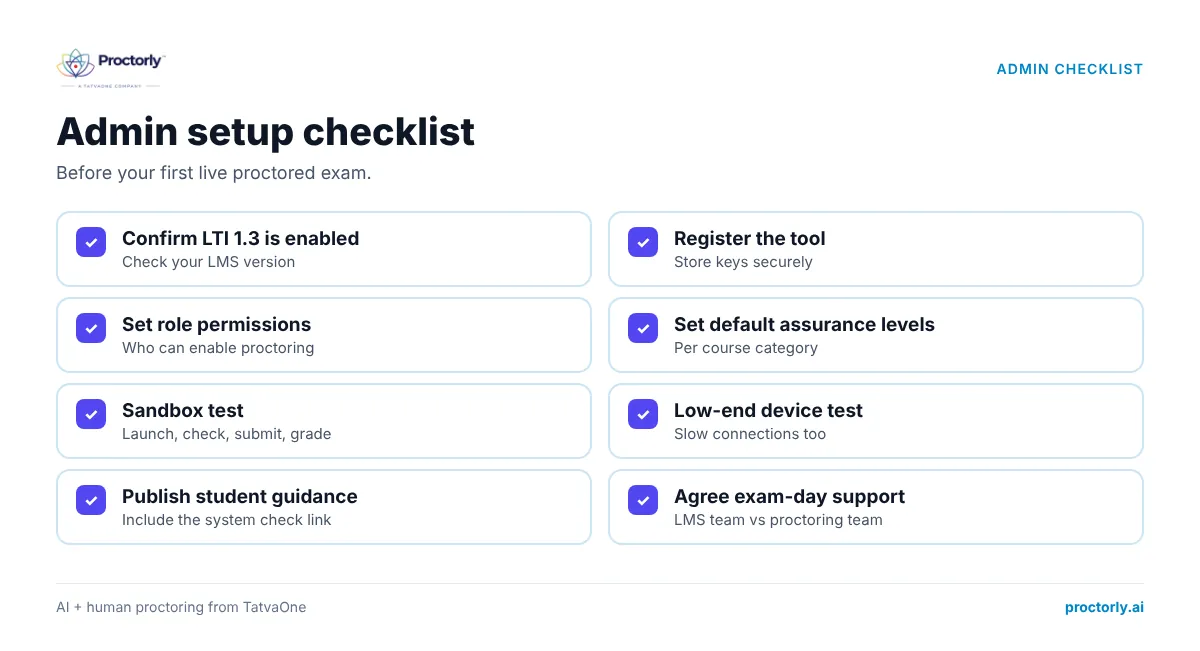
Admin setup checklist
- ☐ Confirm LMS version and whether LTI 1.3 / LTI Advantage is enabled
- ☐ Register the tool and store keys securely
- ☐ Decide which roles can enable proctoring on a quiz
- ☐ Set default assurance levels per course category
- ☐ Test with a sandbox course: launch, identity check, submit, grade
- ☐ Test on low-end devices and slow connections
- ☐ Publish student guidance and the system check link
- ☐ Agree support routing for exam day (LMS team vs proctoring team)
Security and data questions IT will ask
- Authentication: LTI 1.3 uses signed JSON Web Tokens and public/private key pairs, replacing the shared secrets of LTI 1.1.
- Data minimization: what user data is passed at launch, and is it all needed?
- Data residency: where are recordings stored? Proctorly hosts data in the client’s region by default.
- Browser and agent: does the integration require a desktop app? Proctorly runs in Chrome, Safari, Edge or Ulaa, with an optional Windows agent for some exams.
- Subprocessors and security: see the Trust Center security page.
People also ask
Does Moodle have built-in proctoring? Moodle has quiz security settings but not full remote proctoring with identity checks and human review. That comes from integrated tools.
What is the difference between LTI 1.1 and LTI 1.3? LTI 1.3 uses modern signed-token security and supports LTI Advantage services; LTI 1.1 relied on shared secrets.
Can I use proctoring without an LMS? Yes. Proctorly can deliver exams in its own platform without an LMS or ERP.
FAQs
How long does an LTI proctoring integration take?
Registration takes hours; most of the time goes into sandbox testing and faculty guidance. Plan a few weeks before the first live exam. Book a meeting to plan your timeline.
Do faculty need training?
Light training. They build quizzes as usual and choose proctoring settings. A short guide and one practice quiz usually cover it.
Do grades leave the LMS?
No. Attempts and grades stay in your LMS gradebook; proctoring cases are reviewed in the proctoring console.
Does Proctorly support single sign-on?
LMS sign-in via LTI 1.3 is live. Direct Microsoft or Google SSO is planned.
Bring proctoring into the LMS your faculty already use
The right integration makes proctoring feel like a setting, not a separate system. Use LTI 1.3, test in a sandbox, and keep faculty in the tools they know. See all Proctorly integrations.
Ready to connect your LMS? Book a Demo or Book a Meeting.